
 Download Server V3.0.11
Windows OS with .NET Framework 4.8
 Download Client V3.0.11
Apple M1 or later
Ubuntu 20.04 or later


Quickly start your team communication with Output Messenger
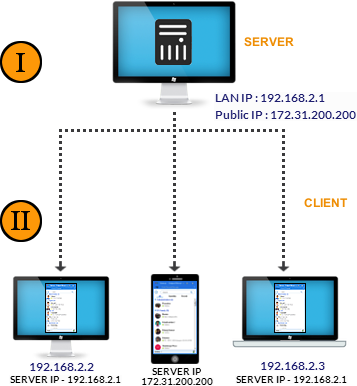
- 1. Install Output Messenger Server(Windows).
- 2. Run Server Manager to start the Server service and Create Groups/User Accounts.
- 3. Install the Output Messenger client program for all clients.
- 4. Login by providing the Server running IP Address.
Advanced Integration Techniques
Output Time
Simple Project Management with Time Tracking
Download On-Premise & Integrate with Output Messenger
Output Desk
Simplified Help Desk Ticketing Software with CRM
Sign Up Now and Integrate with Output Messenger
Internal Messenger Download FAQs
Can I migrate Output Messenger Server from an old server to a new server?
Yes. You can migrate the Output Messenger Server from an existing server to a new server while preserving your configuration and data.
Please follow the step-by-step instructions provided in the server migration guide to complete the migration process.
How can I download chat history from the server, and can deleted user chat logs in the client be recovered?
To download chat history from the server, open the Output Messenger client and navigate to Settings → Other Options → Chat, then click the Download History option. Please note that once a user’s chat logs have been deleted from the server, they cannot be recovered.
Can I purchase additional user licenses without renewing the upgrade plan?
Yes. You can purchase additional user licenses without renewing your existing upgrade plan if you only need to increase the number of users. Click here
Can I view chat history for deleted users or deleted chat rooms?
Yes. Output Messenger retains chat logs even after a user or chat room is deleted. Administrators can access these logs from Server Manager → Chat History Log by selecting Deleted Users or Deleted Rooms, while users can search for deleted user conversations from View Log using @username.
Does Output Messenger support Single Sign-On (SSO)?
Yes. Output Messenger supports Single Sign-On (SSO) through Active Directory Integration.
To enable it, open Server Manager → Configuration, enable Integrate Active Directory Integration, enter the LDAP Host Name details, click the Settings icon, and enable Automatic Login for Active Directory Users.
Why am I seeing the “User Limit Exceeded” message in Output Messenger?
The User Limit Exceeded message appears when the number of connected users exceeds the number of licensed users available on your server. Please verify whether the connected user count has exceeded your license limit by right-clicking the User List to sort users by name and checking the total count displayed in the Output Messenger client.
How do push notifications work in Output Messenger?
Push notifications are sent immediately when a user is logged in on a single device. If the user is logged in on multiple devices, notifications are sent at intervals, and no push notification is sent if the message has already been viewed on any of the logged-in devices.
Can I configure multiple static IP addresses in Output Messenger?
Yes. Output Messenger allows you to configure multiple static IP addresses by entering them in the IP address field separated by a semicolon (;), for example: 192.168.2.1;202.205.206.21. The client will automatically use the appropriate IP address based on the network it is connected to.