




All we wish to use own SSL certificate for the applications and websites we use in our concern regarding the Security. We can see here the steps to add/import such custom/trusted SSL certificates.
Add a certificate snap-in to MMC
1. Click on Start, then type and choose mmc.exe.
2. In the Microsoft Management Console (MMC) window, click File → Add/Remove Snap-in.
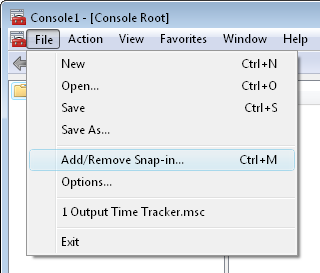
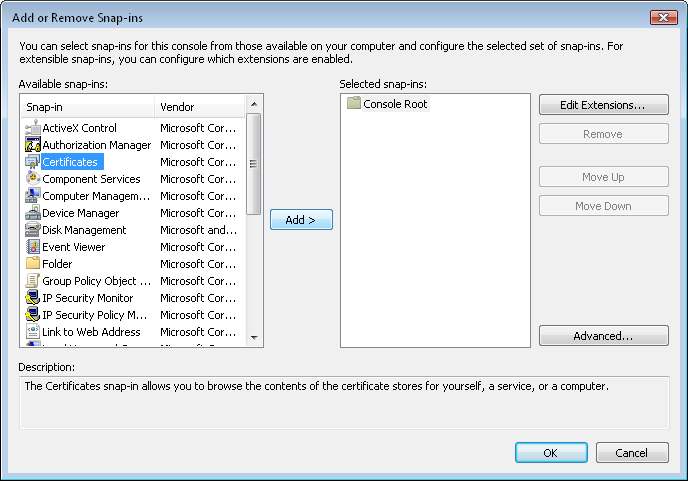
3. Click on Certificates Snap-in, in the Add or Remove Snap-in pop-up and click Add button.
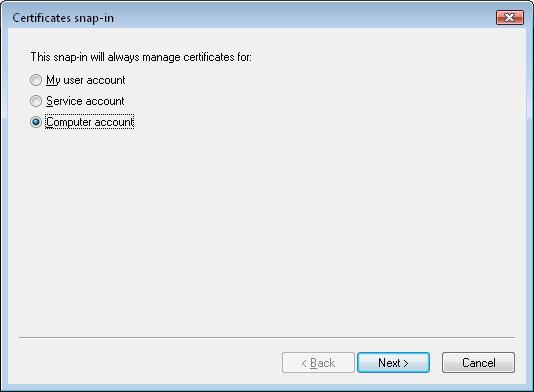
4. Choose the Certificate Type as ‘Computer account’ in Certificates snap-in.
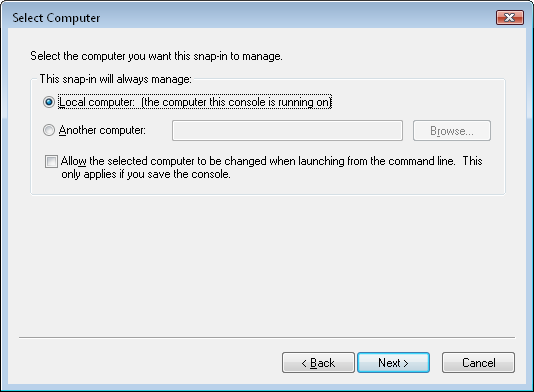
5. Select Local Computer in Select Computer popup and click Next then Finish.
6. Click ‘OK’.
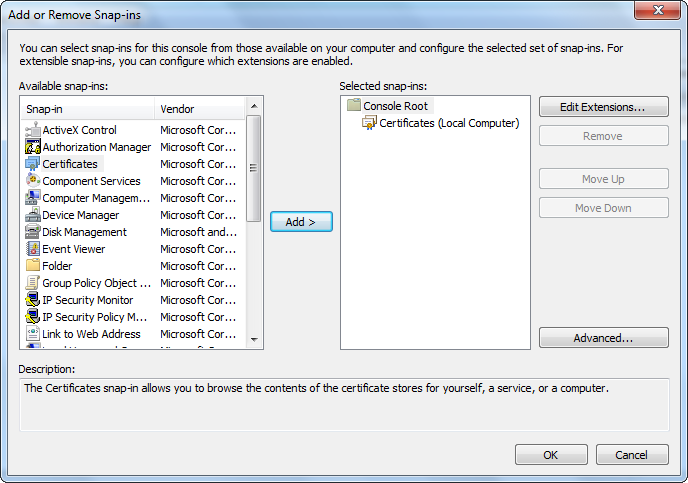
Import the Certificate in MMC
7. Expand Certificates Snap-in.
8. Right click on Personal folder. Select All Tasks → Click Import.
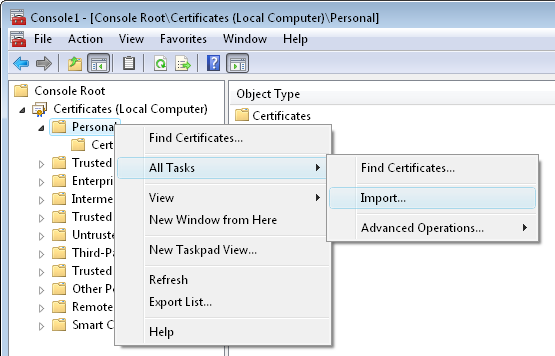
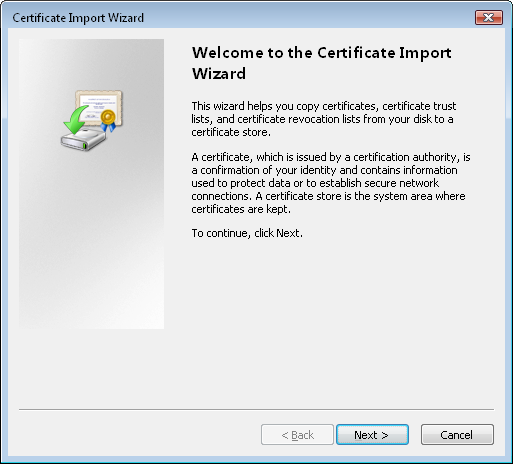
9. In the new Certificate Import wizard, Click Next.
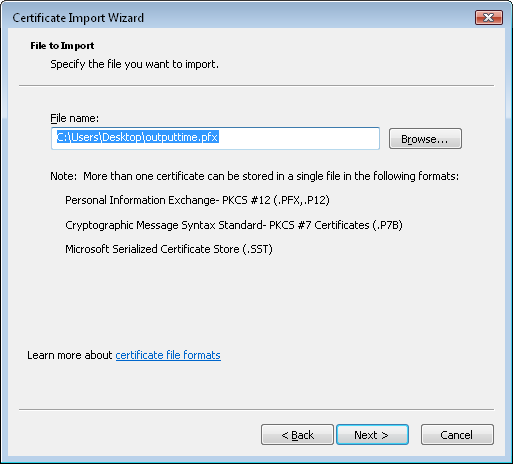
10. Browse the .PFX file and click Next.
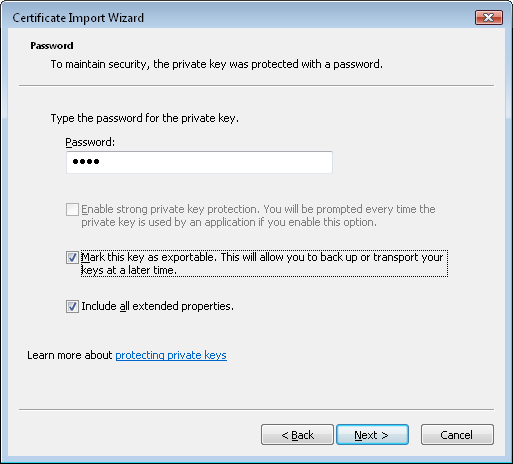
11. Provide the password you provided while creating .PFX file. Make sure that the option “Make this key as exportable” is checked, which helps you to export the key pair again and click Next.
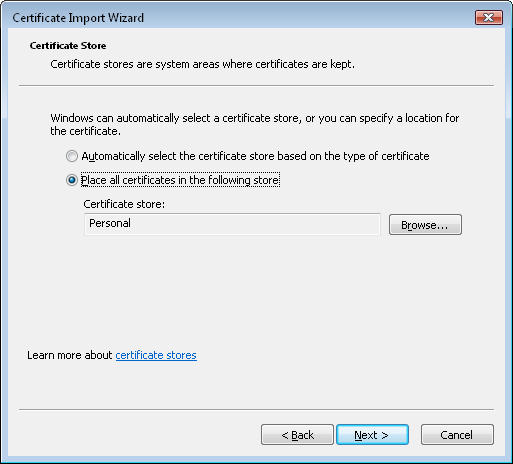
12. Choose the Certificate Store, where you want to save , since you are using Web Certificate you should choose Personal.
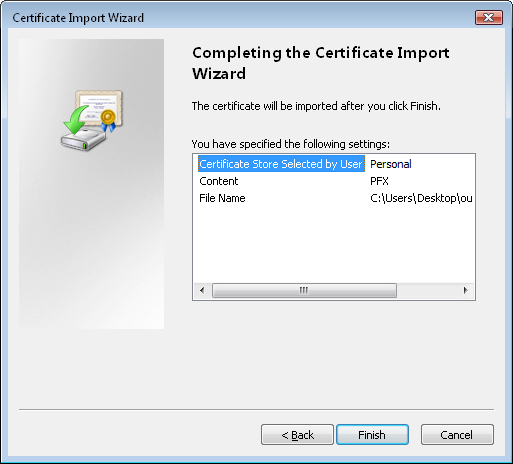
13. Check whether the furnished information are correct, and click Finish.
14. Then you will get “The import was successful” alert box.

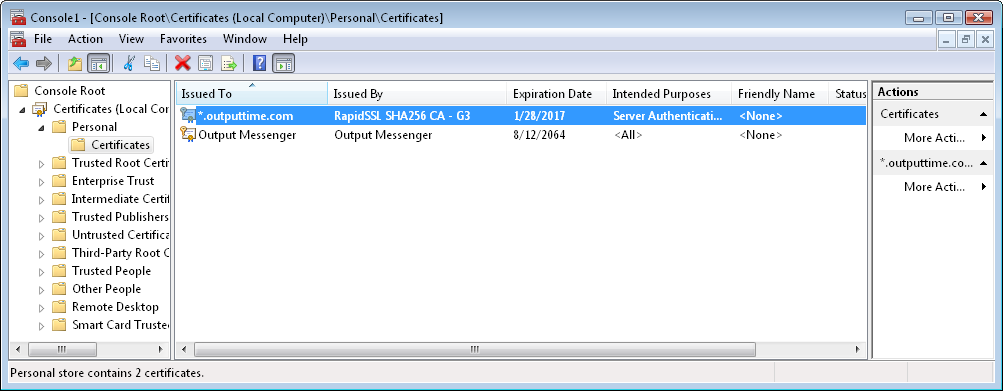
15. After Clicking OK, Your certificate will be listed in certificate list.
Apply your custom SSL Certificate to your app
Now you can apply the created custom SSL certificate to your app through its Configuration Settings.
Example:
- You can refer the following example which explains the way of applying the Custom SSL Certificate to our instant messaging software Output Messenger.
- All communications in Output Messenger are done under SSL by using an internal certificate. For Browser Client version, you can change the default certificate to your own custom/trusted SSL certificate.
Select Certificate
1. In Server Manager → Configuration → Browser Version → SSL Certificate popup, choose your SSL Certificate and click Save.
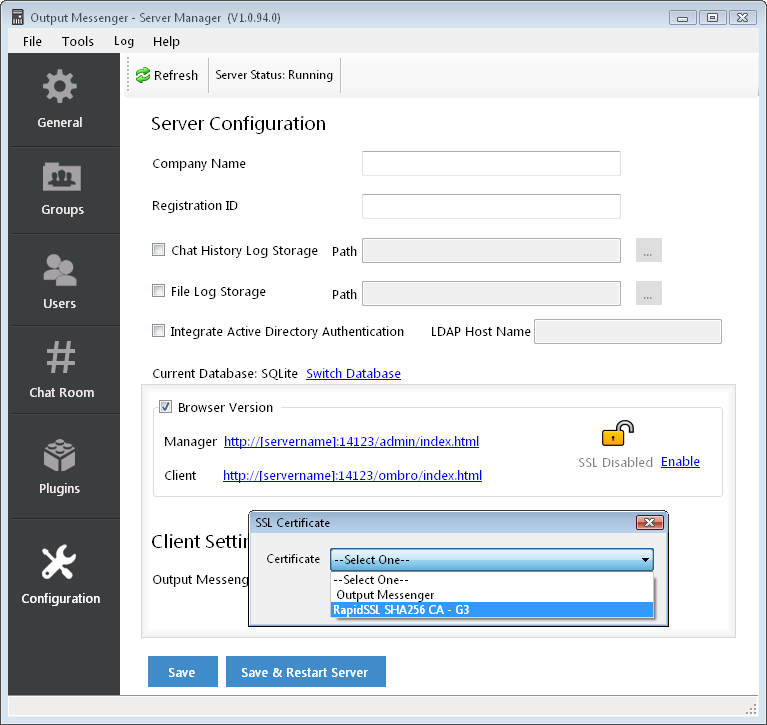
2. If you have any issue in applying the certificate, try importing the certificate again by deleting from the personal folder.