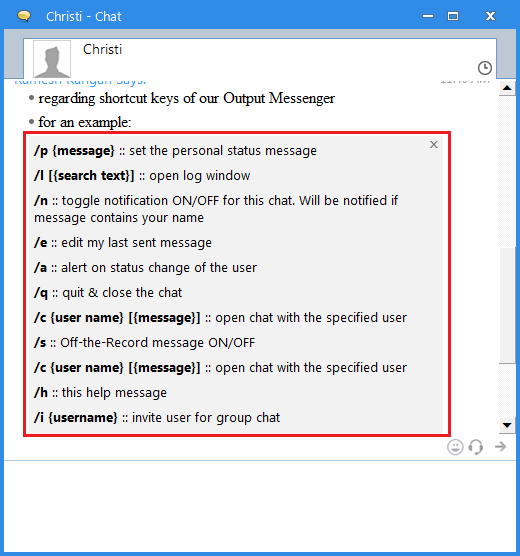
As told in the previous blog, we are productive devotees, looking for short, simple but powerful way to save our time. You can use our hot-keys to minimize your time of mouse movement and clicks. Here they are for your reference, which you can do on a chat window.
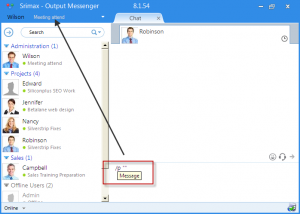
1. Set Personal Status :
You can set / change your status, without using Output Messenger window. You can just follow this format while chatting.
/p “Message”
eg : /p “In Meeting”
2. Status Change Alert :
There may some situation, where your colleague whom you want to chat may not Online. In such cases, you can set and get alert, on their status change, by typing /a.

3. Edit message :
You can easily edit the message which was last sent. To edit your last message you can just type ‘/e’.
Your last message will appear in the text area, where you can edit your message and resent it.
4. Off-the-record message :
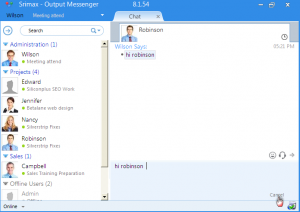
In your Management, you may have to send confidential messages at times. In such instance, Administrator can use ‘/s’, to set the message as confidential. These messages won’t be logged in server.
/s “message”
eg : /s “Send our customer Details”
5. Log Window :
You can now easily open chat log and even search for a specific word.
/l “search text”
eg: /l “test”
6. Open chat for specific user :
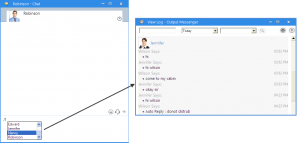
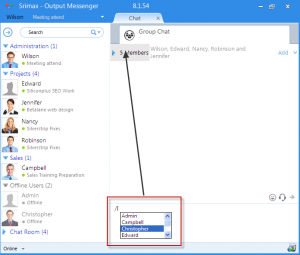
You can open chat for specific user(chat instantly with @) from an existing chat using ‘@’. You can just type @ and select user form the drop-down appeared. Also you can sent along with message using ‘/c’.
@ {name}
or
/c {name} “text”
7. Close Chat window:
Type ‘/q’ or hit ‘Esc’ to close the chat window.
8. Invite users to Group :
You can add / invite users to your group chat, using ‘/i’.
/i “name”
eg : /i “Richard”
9. Toggle Notification :
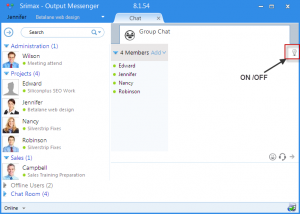
To get message notification in chat room /group chat, type ‘/n’. It will shifts notification between On / Off.
10. Hot-keys Help Window :
To have all these provided details in your chat window, type ‘/h’.