Introduction
If you want to get input in Google Forms and post the data to a chat room or another user in your Output Messenger, you can follow the below steps.
1) Enable API
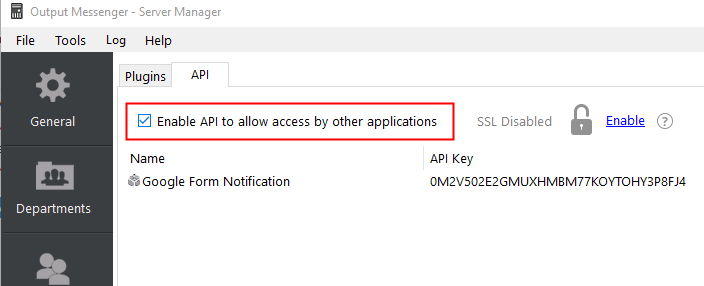
- Select the Plugins > API tab in Output Messenger Server Manager.
- Enable the API to allow access by other applications.
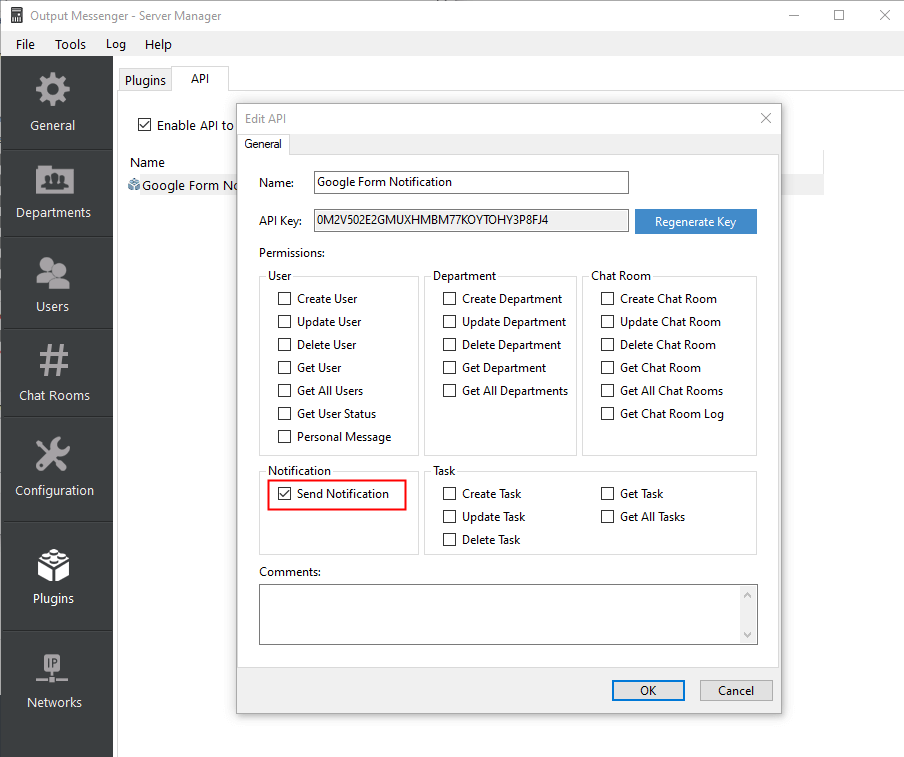
- Turn on Send Notification after adding an API.
2) Create Google Form & Select Script Editor
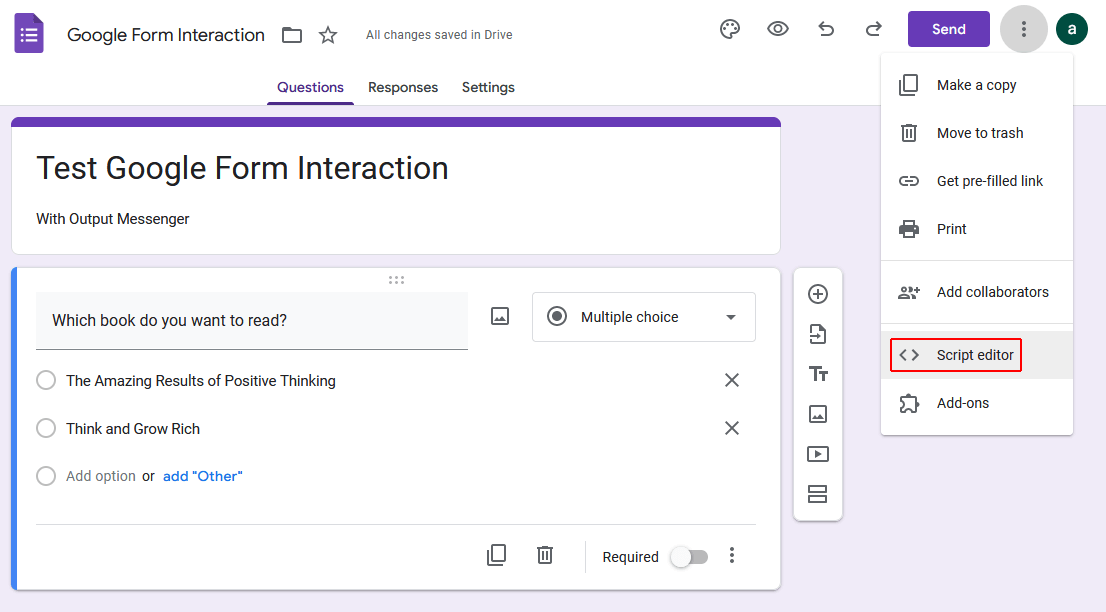
- Create a Google Forms form.
- On the right side of the form, click “More”
 and then choose “Script Editor”.
- Click Editor icon
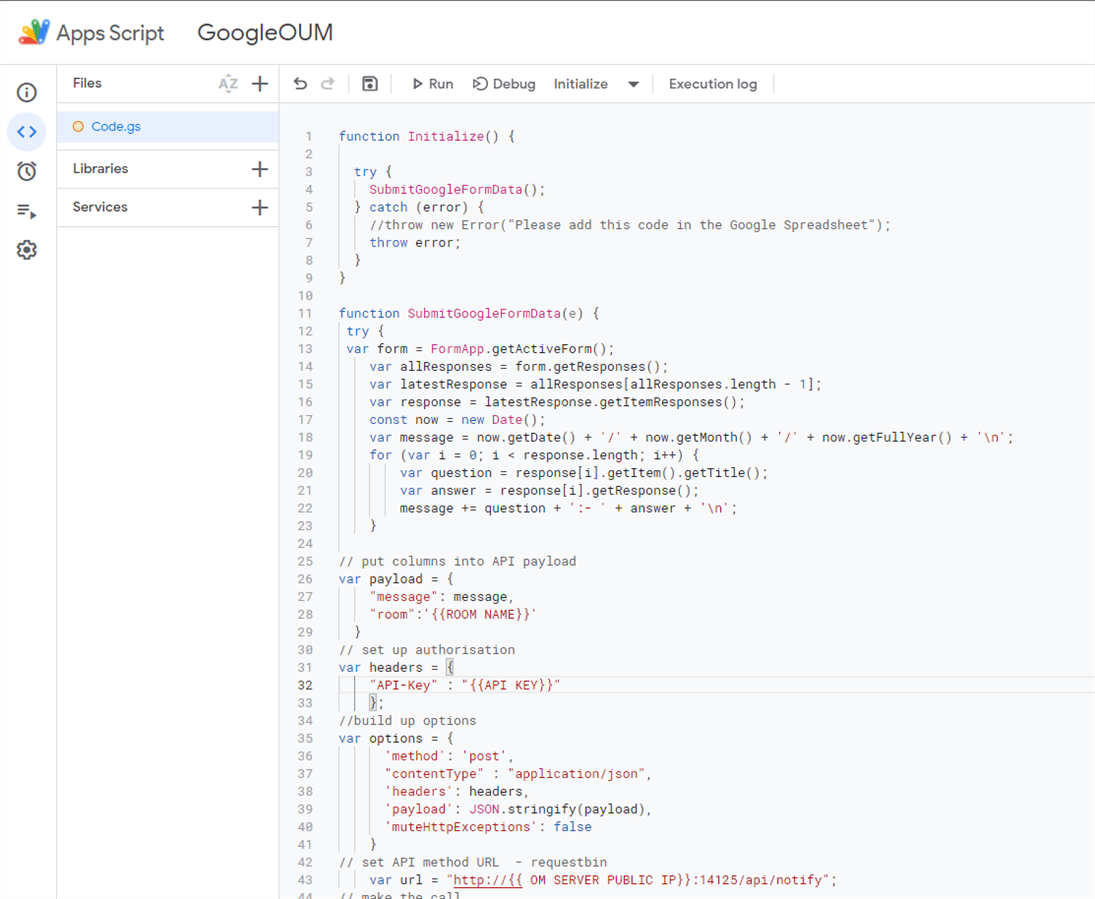
 at the left side of Google Form & Copy the following code in Code.gs.
 function Initialize() {
  try {
    SubmitGoogleFormData();
  } catch (error) {
    throw error;
  }
}

function SubmitGoogleFormData(e) {
 try {
 var form = FormApp.getActiveForm();
    var allResponses = form.getResponses();
    var latestResponse = allResponses[allResponses.length - 1];
    var response = latestResponse.getItemResponses();
    const now = new Date();
    var message = now.getDate() + '/' + now.getMonth() + '/' + now.getFullYear() + '\n';
    for (var i = 0; i < response.length; i++) {
        var question = response[i].getItem().getTitle();
        var answer = response[i].getResponse();
        message += question + ':- ' + answer + '\n';
    }

// put columns into API payload
var payload = {
    "message": message,
    "room":'{{ROOM NAME}}'
      }
// set up authorisation
var headers = {
    "API-Key" : "{{API KEY}}"
    };
//build up options
var options = {
      'method': 'post',
      "contentType" : "application/json",
      'headers': headers,
      'payload': JSON.stringify(payload),
      'muteHttpExceptions': false
    }
// set API method URL  - requestbin
    var url = "http://{{ OM SERVER PUBLIC IP}}:14125/api/notify";
// make the call
    var response = UrlFetchApp.fetch(url, options);
// log the response (useful for debugging )
    Logger.log(JSON.stringify(response));

  } catch (error) {
    Logger.log(error.toString());
  }
}
- Next replace keywords such as USER NAME, ROOM NAME, API KEY and OM SERVER PUBLIC IP in code.gs & save project.
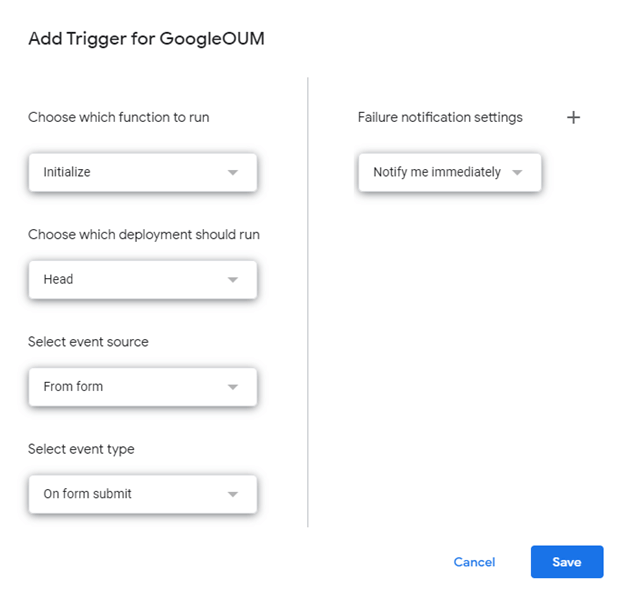
3) Create Trigger
- To create a new trigger, Select Triggers icon
 at the left side of Google Form & click
  button.
 - Then click “Save” to create trigger.
- After submit on Google Form by selecting the preferred option, you will get notification in Chat room/User window.